
Account security
In the cabinet: 👤 → Security
Link: Open ↗
The Security section gathers everything that protects your account: two-factor authentication, access recovery and credential changes.
The second factor can be one of two kinds: Google 2FA and Cryptorg Code (a 6-digit PIN).
Google 2FA
Section titled “Google 2FA”Install an authenticator app on your phone:
- Android: Google Authenticator
- iOS: Google Authenticator
In the cabinet open Account settings → Security. Open the app, tap ”+” and scan the QR code. Enter the code from the app in the “Two-step authorization code” field along with the verification code from your email.
Cryptorg Code
Section titled “Cryptorg Code”Cryptorg’s own equivalent of Google 2FA — a 6-digit PIN. It protects critical actions: withdrawals, creating and editing API keys, creating an exchange code (Swap Code). Be sure to write the PIN down on paper. Reset it with the Reset button in the Security block.
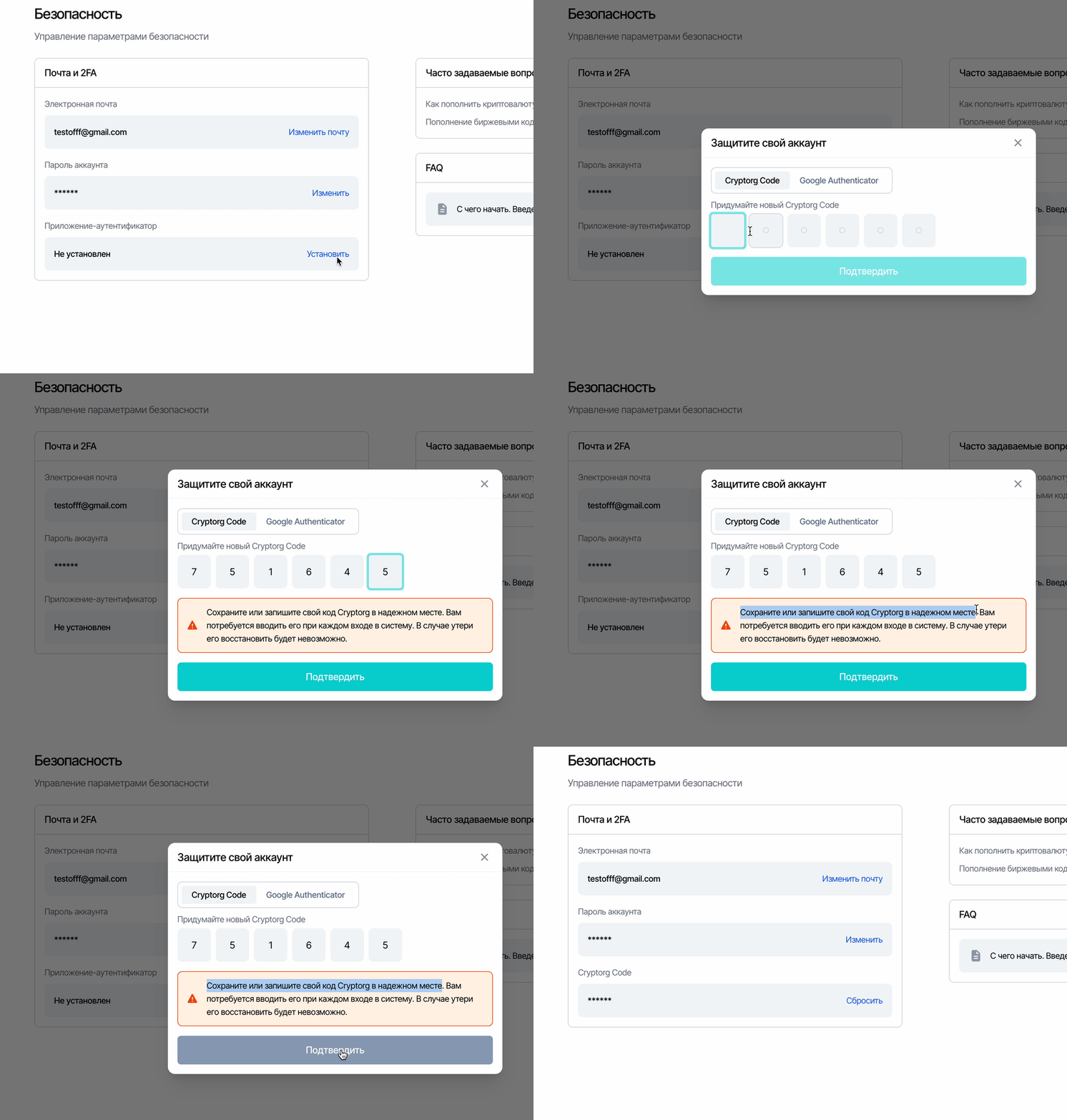
Access recovery
Section titled “Access recovery”Google 2FA. If you lost your phone — find the saved secret code and create a new account in Google Authenticator from it; the codes will work again. If you used Authy — restore access from a backup or the linked phone number.
Cryptorg Code. Try to recall your 6-digit PIN — if you followed the advice, it’s written down on paper.
If nothing helped — email [email protected] from the address your Cryptorg account is registered to, stating your login.
Email and password
Section titled “Email and password”- The account email is shown in the Security block; change it with the Change button (with confirmation).
- The login password — the Change button; recovery if lost — Password recovery.
Related pages
Section titled “Related pages”- Verification (KYC) — affects your withdrawal limit.
- Notifications — Telegram notifications for bot events.