
Creating a bot
In the cabinet: the “Spot bots” section, “My Bots” page, “Create new bot” button.
The button opens the bot type picker. Only DCA is available right now; the other types are marked “Coming soon” (see Overview). Click DCA to open the bot form.
A spot bot trades on the spot market of Binance or Bybit liquidity on Cryptorg. It buys and sells coins by the rules you set, with no leverage. It is a DCA bot: it places a first order and a ladder of safety orders (SO) spaced by a percentage step. Each filled SO lowers the average entry price (raises it for Short), and the take profit is moved to the new average.
One bot can trade up to 10 pairs at once. Each pair runs its own deal, and a pair has only one open deal at a time.
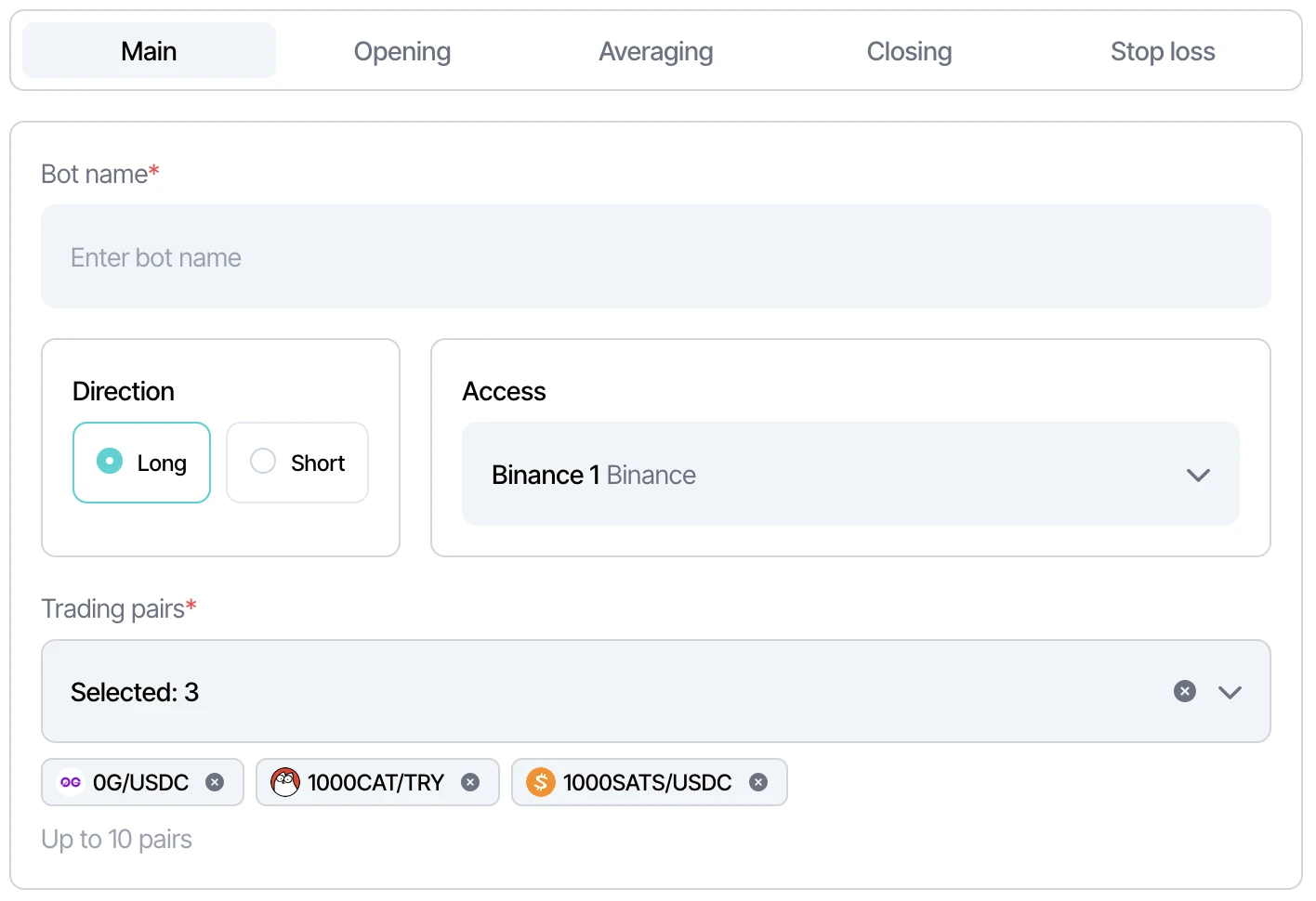
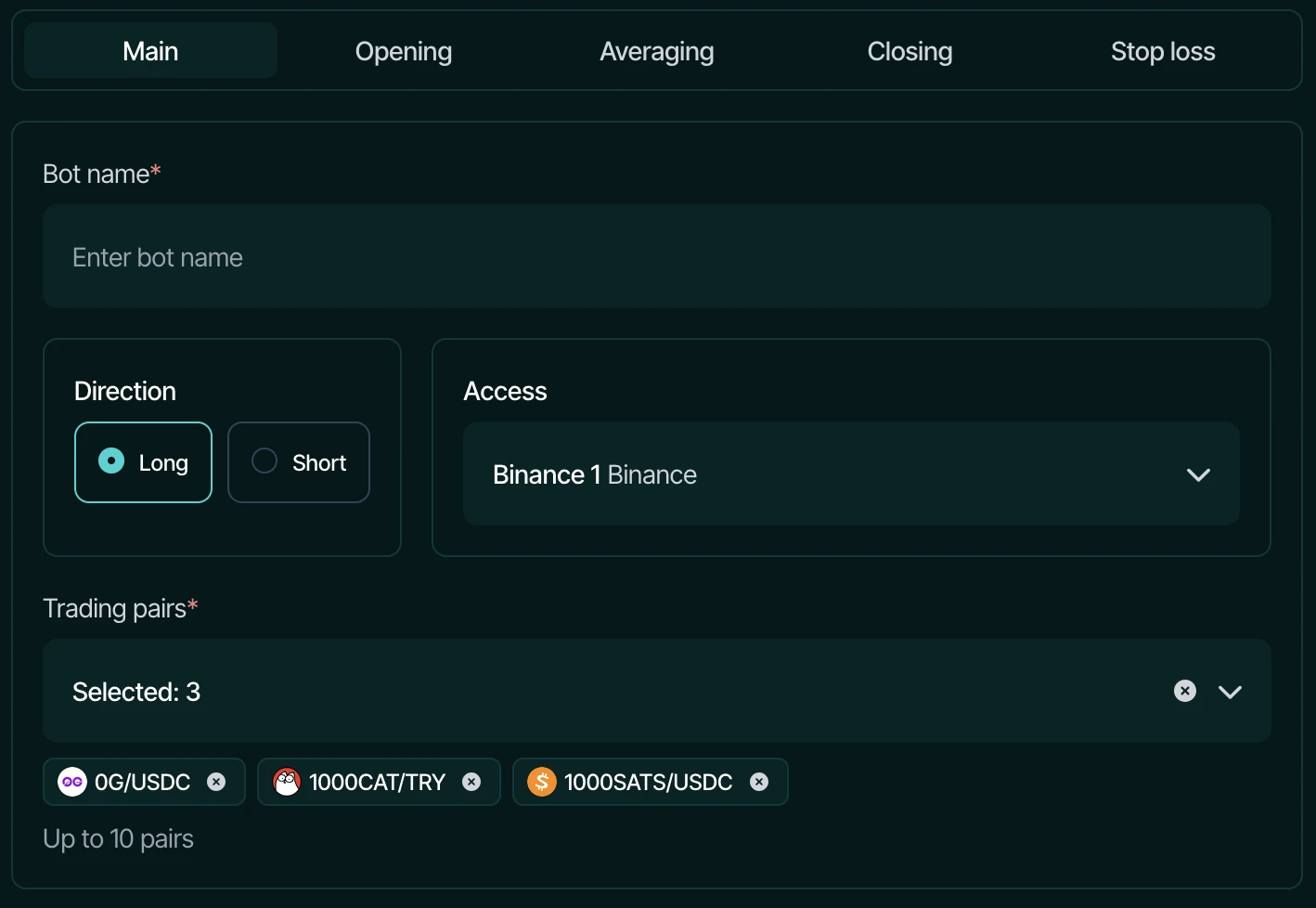
The bot has five tabs: “Main”, “Opening”, “Averaging”, “Closing” and “Stop loss”. At the bottom of each tab there is a “Webhooks” block, described in the Webhooks article.
The preview on the right shows a short summary of the bot settings and the order ladder for the selected pair. The “Save” button in the top right corner saves all tabs at once. If a setting would not work on the exchange (an order below the minimum amount, a PNL target smaller than the fee, and so on), the bot is not saved, and the form shows which field to fix.
Step 1. Main
Section titled “Step 1. Main”- “Bot name”: up to 128 characters.
- “Direction”:
- Long. The bot buys a coin and sells it higher. It needs a free balance
of the quote currency: for
BTC/USDTthat is USDT. - Short. The bot sells a coin you already hold and buys it back lower.
It needs a free balance of the coin itself: for
BTC/USDTthat is BTC. Short profit is counted in the quote currency.
- Long. The bot buys a coin and sells it higher. It needs a free balance
of the quote currency: for
- “Access”: the exchange account in Binance or Bybit liquidity on Cryptorg that the bot will run on. Open the account in advance. You cannot change the exchange or the account of a bot once it is created.
- “Trading pairs”: up to 10 pairs. Each pair shows the exchange’s minimum
order amount next to it. Pairs in one bot can have different quote
currencies, for example
BTC/USDT,ETH/BTCand2Z/USDCin the same bot.
Step 2. Opening
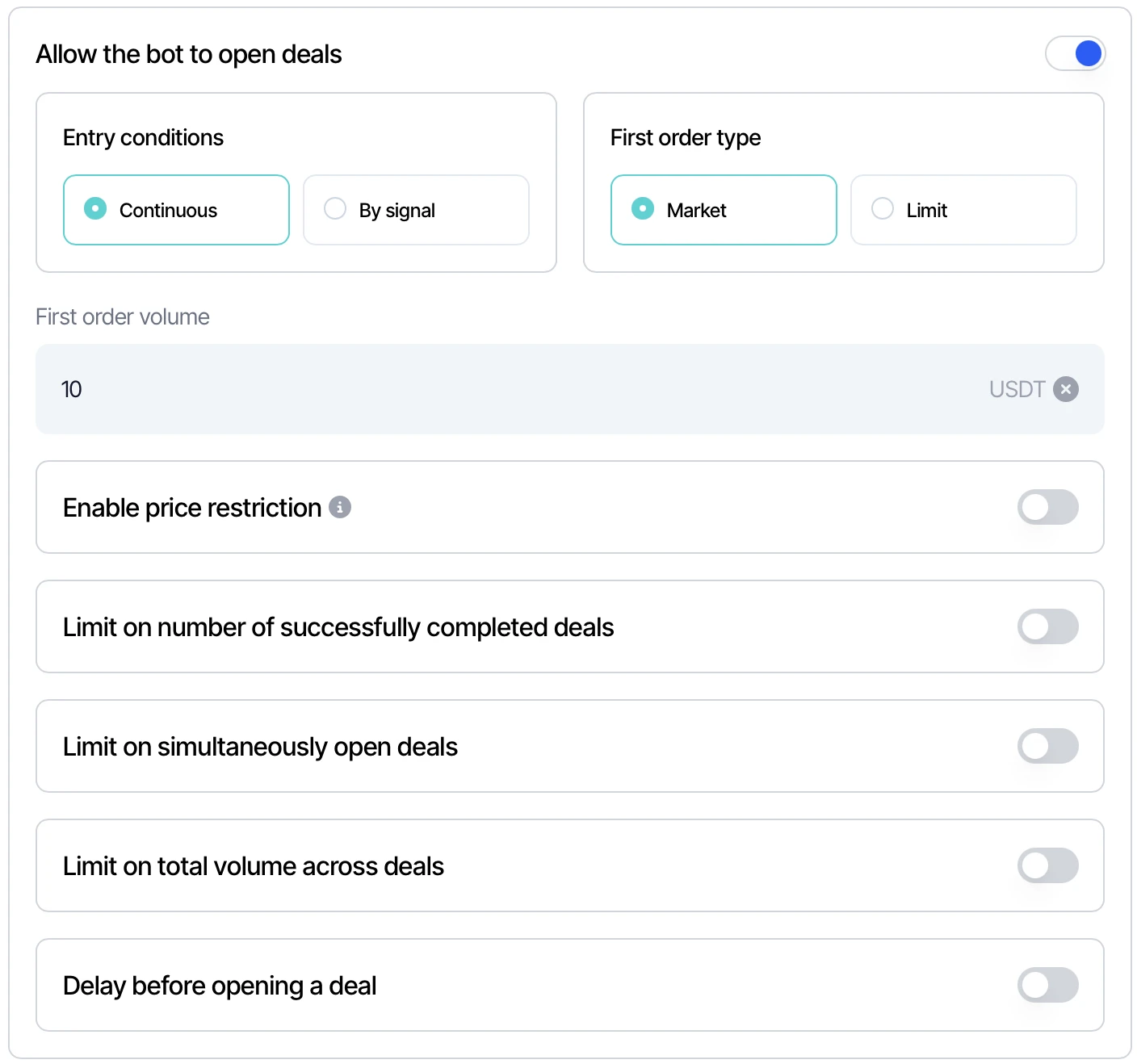
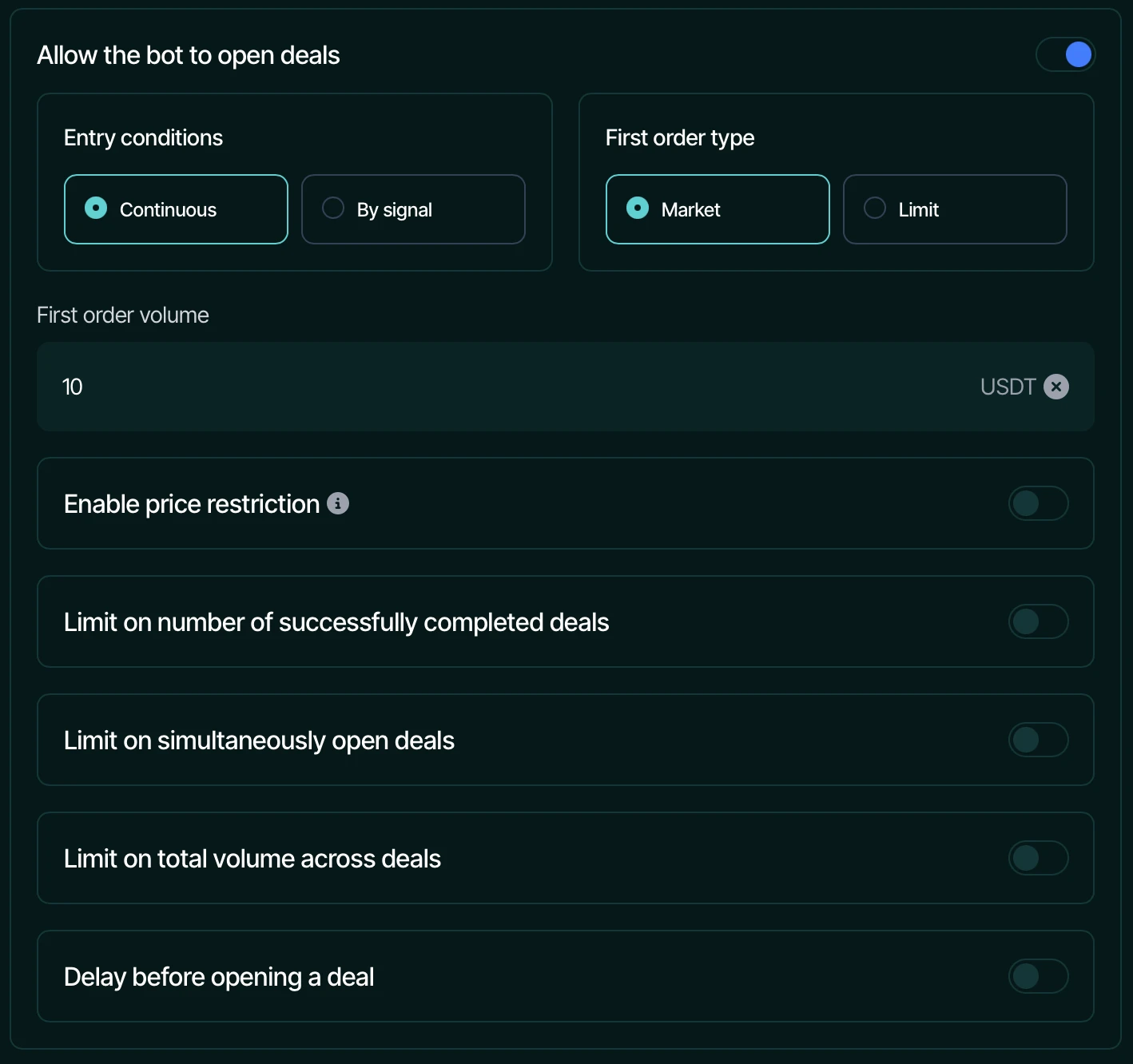
Section titled “Step 2. Opening”The “Allow the bot to open deals” toggle is on by default. If you turn it off, the bot does not buy on its own (Short does not sell). Instead it takes into a deal what is already on the account:
- Long takes free coins of the pair, for example from your own filled limit order or bought manually. The entry price is the price they were bought at. Coins held by deals of your other bots are left alone.
- Short takes sales of this pair that you made on the exchange yourself after the bot was started.
The bot checks the account every 30 seconds. After that it is a normal deal with take profit, averaging and stop loss. The bot history shows a line saying the bot picked up the coins from the account as its own deal, or, for Short, that it took a sale made outside the bot as its own deal. The other fields on the tab are not needed while opening is off.
Entry conditions
Section titled “Entry conditions”- “Continuous”: the bot opens a deal as soon as it starts, and after each closed deal it opens the next one, taking the delay into account (see below).
- “By signal”: in the “Open by signal” block, choose what opens a deal.
-
“Signal”. A deal opens when one of the selected signals fires; you can select up to 100. Such a bot also opens a deal on the “Open” webhook, for example from a TradingView alert (see Webhooks).
-
“Market shock”. A deal opens when the platform sees a sharp price move on the pair. Settings:
- “Type”: Pump (the price rose sharply) or Dump (it fell);
- “Impulse speed”: a sharp (shock) or slow (slow) move;
- “Impulse strength, %”: from 0 to 1000, where
0means any impulse. Preset levels: 1 is 3 %, 2 is 6 %, 3 is 8 %.
The bot skips impulses older than 2 minutes.
-
A signal opens one deal. After it closes, the bot waits for the next signal.
First order
Section titled “First order”- “First order type”: a market order fills right away at the current price, a limit order is placed at your price and waits for it. We recommend market.
- “Limit price” is needed for a limit first order. It is set for each pair separately, in the pair’s quote currency.
- “First order volume”: the amount in USDT, for example
25. If it is below the exchange’s minimum order amount, the form raises it automatically.
Opening limits
Section titled “Opening limits”Each limit has its own toggle.
- “Enable price restriction”: set a minimum and maximum price for each
pair. Outside this range the bot does not open new deals.
0means no limit on that side. The restriction does not affect a deal that is already open: safety orders, take profit and stop loss work as usual.- With “Continuous” entry, the bot waits until the price is back in the range.
- With entry by signal, the first price after the signal decides. If it is outside the range, the signal is skipped.
- “Limit on number of successfully completed deals”, with the field for the number of cycles after which the bot stops: from 1 to 100. When the bot completes that many deals, it stops. Without this limit the bot repeats deals until you stop it. Every completed deal counts, including deals closed by stop loss, by signal or manually, deals ended with the “Cancel deal” button, and deals where the first order never filled.
- “Limit on simultaneously open deals”: from 1 to 300. Useful for a bot on several pairs: a new deal does not open while this many deals are open.
- “Limit on total volume across deals”: an amount in USDT; deals on pairs with another quote currency are converted at the current rate. This is how much the bot can put into all open deals in total: filled entry orders and averaging buys plus the first order of a new deal. When the limit is reached, new deals wait for the current ones to close.
- “Delay before opening a deal”: for each pair, from 0 to 500 seconds, 1 by
default;
0means no pause. The pair waits this many seconds after its deal closes before opening the next one. A signal or an “Open” webhook that arrives during the delay is skipped.
Bot limits work together with the account limits (the “Spot bots” section, “Settings” page) and cannot exceed them. The stricter one applies.
Step 3. Averaging
Section titled “Step 3. Averaging”Safety orders buy more of the coin when the price moves against the deal (for Short, they sell as the price rises) and improve the average entry price.
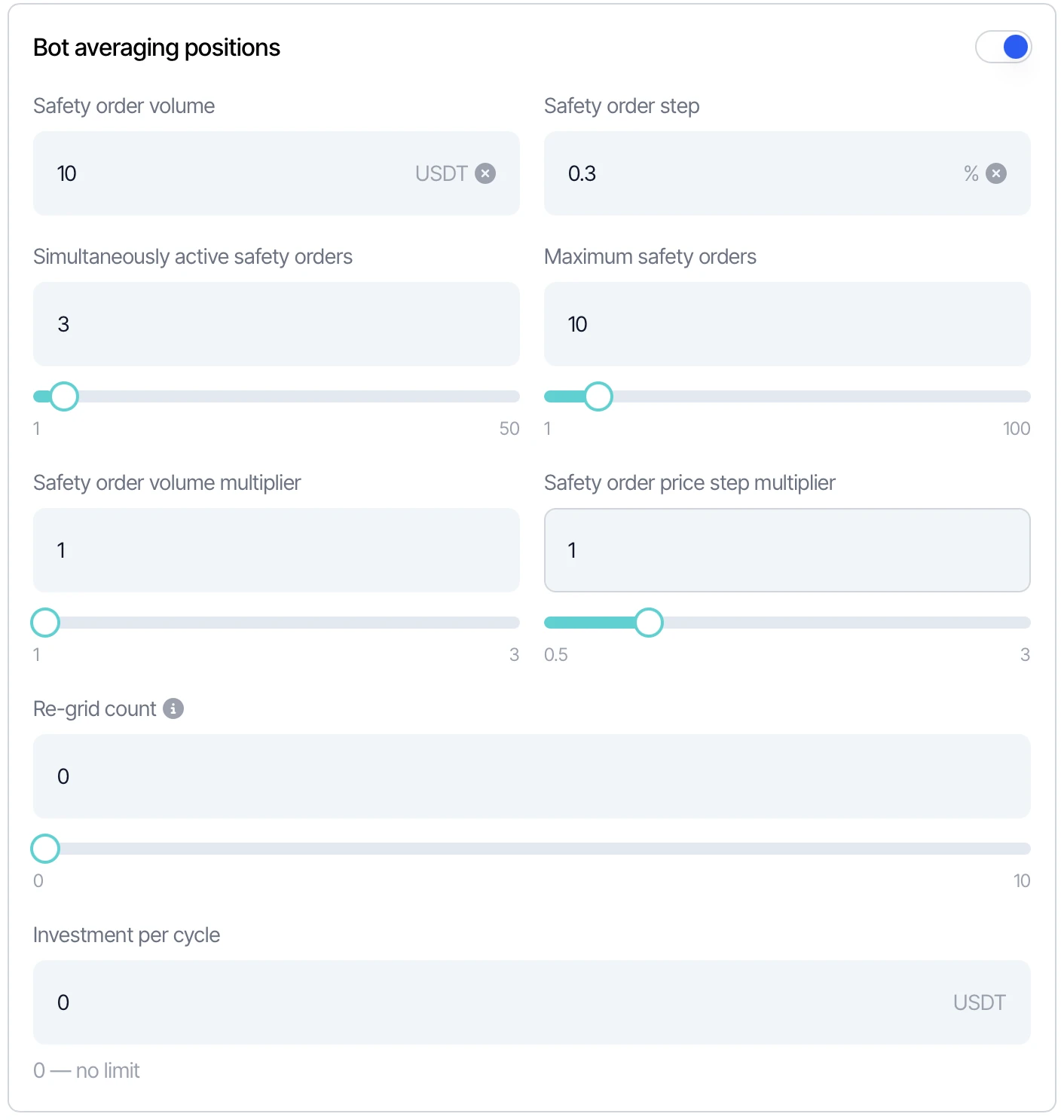
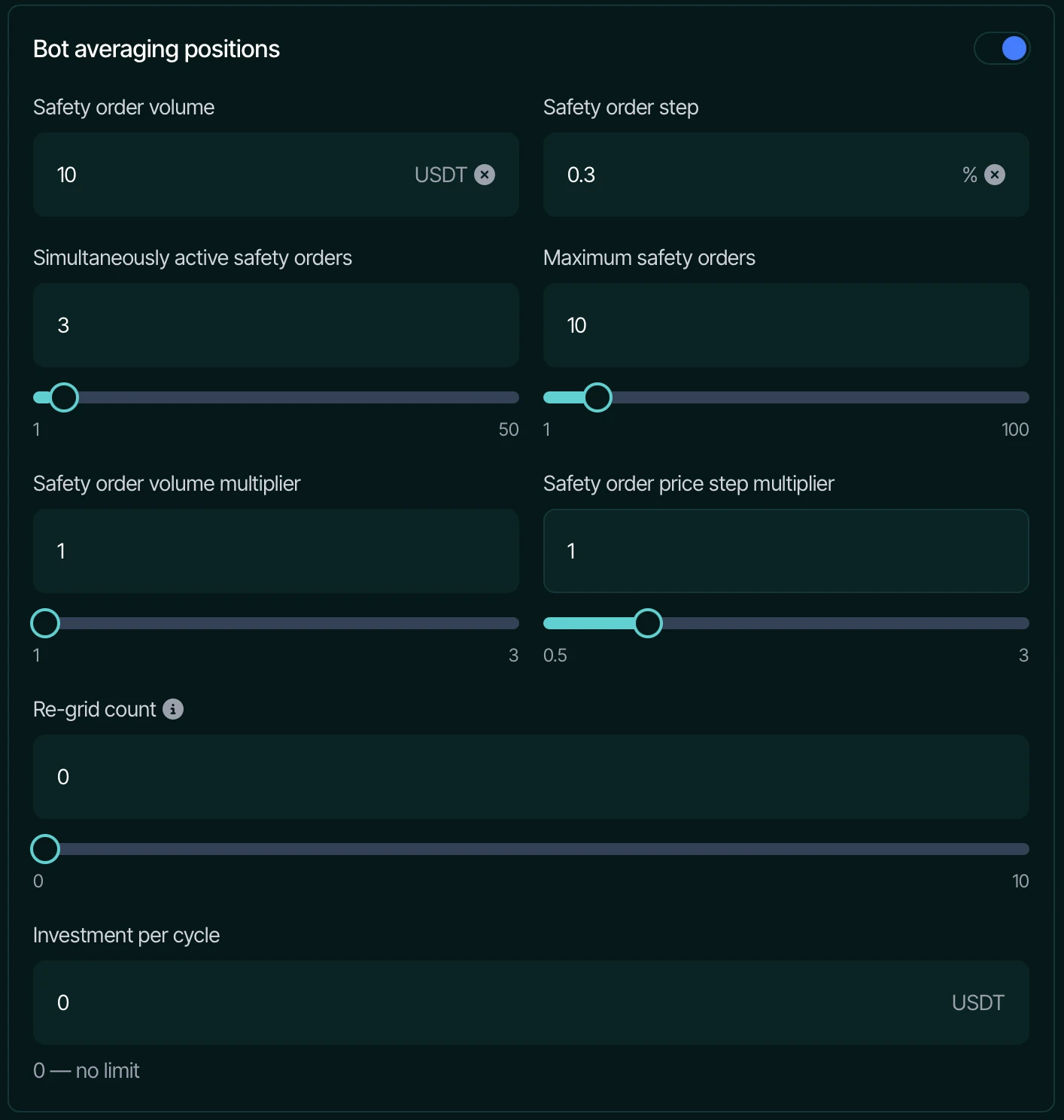
If you turn off “Bot averaging positions”, there are no safety orders. The deal then consists of the first order (or the picked-up coins) and the exit.
- “Safety order volume”: the amount of the first SO in USDT.
- “Safety order step”, %: the distance of the first SO from the entry
price, for example
1%. Greater than 0 and no more than 100. - “Simultaneously active safety orders”: from 1 to 50, and no more than the total number of SO. This many SO are on the exchange at the same time; the rest are placed as they fill.
- “Maximum safety orders”: from 1 to 100. The total number of SO one deal can have.
- “Safety order volume multiplier”: from 1 to 3. Each next SO is this many
times larger than the previous one; with
1all SO are equal. - “Safety order price step multiplier”: from 0.5 to 3. Above 1 the distance between SO grows, below 1 it shrinks.
The whole ladder is checked: no SO price may drop to zero, and the amount of the farthest SO must not round down to zero.
- “Re-grid count”: from 0 to 10;
0turns re-gridding off. When all SO of a deal have filled, the bot places the SO grid again, with the same steps and amounts, but starting from the price of the last filled SO. This way averaging continues if the price has gone below the whole grid. The counter resets with each new deal. One deal can spend the total amount of all SO as many times as grids are placed (1 + the field value). The preview shows all grids, and the total includes all of them. - “Investment per cycle”: how many USDT one deal can put into the first
order, all SO including re-grids, and webhook buys. The bot does not
place an order that would take the deal over this amount. This is not an
error: the deal continues with what has already been bought. Take profit,
stop loss and closing the deal are not limited by this amount. The count
starts over with each deal. If the limit is less than the first order
plus all SO, a warning appears on save that the last SO will not be
placed.
0or an empty field means no limit.
Step 4. Closing
Section titled “Step 4. Closing”Closing is controlled by two independent toggles. You can turn on both, one, or neither. This differs from a futures bot: there closing by signal is one of the close events, and turning it on switches off closing by percentage.
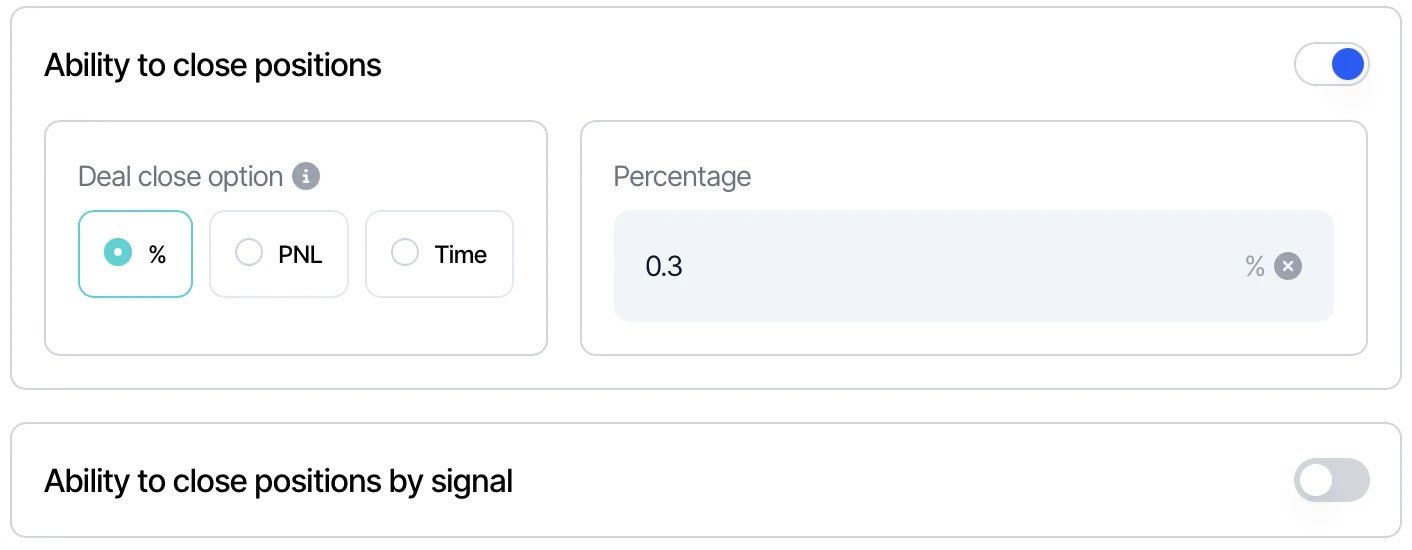
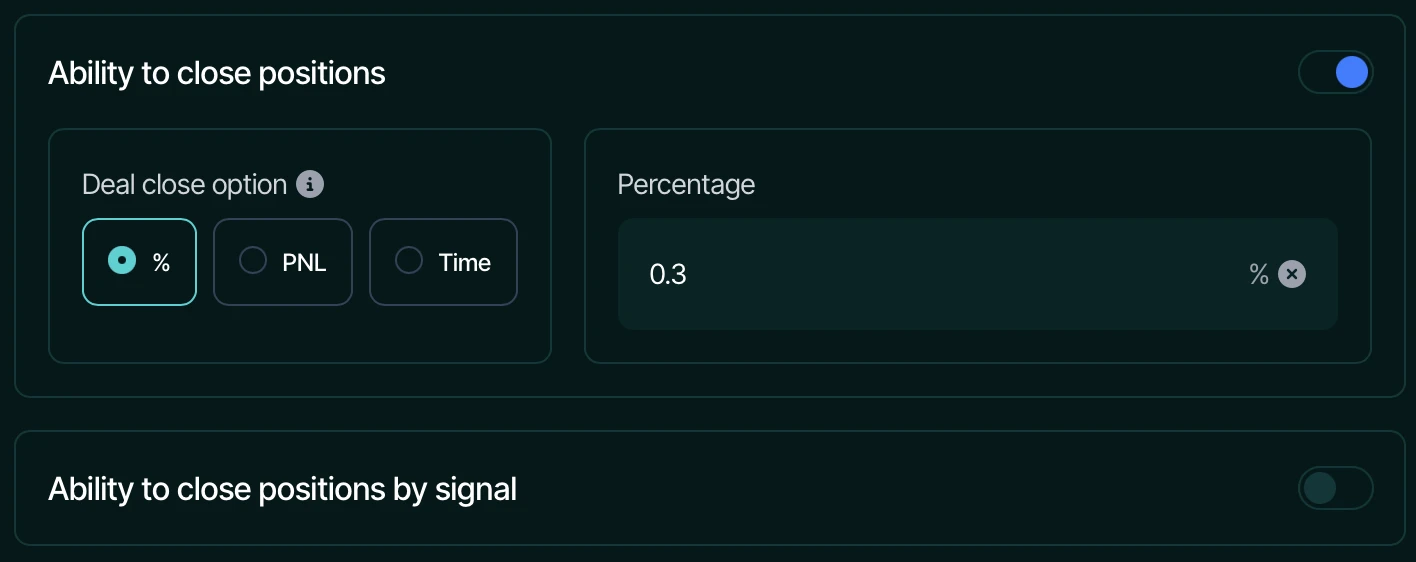
“Ability to close positions” is on by default: the bot closes the deal itself. The “Deal close option” field has three options.
- ”%” (take profit). The deal closes with a limit order at the set percentage above the average entry price (below it for Short). After each filled SO, the take profit is moved to the new average. The percentage is greater than 0 and no more than 100; for Short, less than 100. The take profit price is set with the buy and sell fees at your account’s rate taken into account, so the deal result is close to the set percentage. It can differ slightly because order volumes are rounded to the lot step.
- “PNL”. The target profit of the deal in USDT after fees (on a pair with another quote currency, at the rate at the time of the check). There is no take profit order: the bot watches the price and closes the deal at market as soon as the profit is reached.
- “Time”. A timer in seconds from the moment the deal opens, from 1 to 31,536,000 (one year). When the time runs out, the deal closes at market, in profit or at a loss.
“Ability to close positions by signal” is off by default. If you turn it on, the deal closes at market when any of the selected signals fires; you can select up to 100.
- If both toggles are on, the deal is closed by whatever fires first: take profit, PNL or time, or the signal.
- If only closing by signal is on, stop loss must be on as well. The signal comes from an external service, and if a trigger gets lost, the deal would have no other way out.
- If both are off, the bot places no take profit and does not close the deal by signal, PNL or time. The deal is closed by stop loss, the “Force close” and “Cancel deal” buttons, or the “Close” webhook. At least one of the four (opening, averaging, closing, stop loss) must be on.
Manual closing
Section titled “Manual closing”You can always close a deal manually:
- “Force close deal” sells the coins at market;
- “Cancel deal” removes the orders and leaves the coins on the account.
After a cancel, a running bot opens the next deal once the pair’s delay has passed. A cancelled deal counts toward the completed deals limit.
Step 5. Stop loss
Section titled “Step 5. Stop loss”Stop loss is turned on with the “Ability to place Stop Loss orders” toggle. The “Order option” field has two options.
- ”%”. The percentage from the average entry price that the price can move against the deal: greater than 0 and no more than 100; for Long, less than 100. The average price changes with each SO, and the stop loss moves with it.
- “PNL”. The acceptable loss of the deal in USDT including fees (on a pair with another quote currency, at the rate at the time of the check). The stop loss fires at the price where a market sale (a buyback for Short) would produce this loss. The level is recalculated after each filled order: an SO makes the deal larger and moves the level closer, and coins already sold by a partially filled take profit are taken into account too. The loss must be larger than the fee for buying and selling the first order, otherwise the bot is not saved.
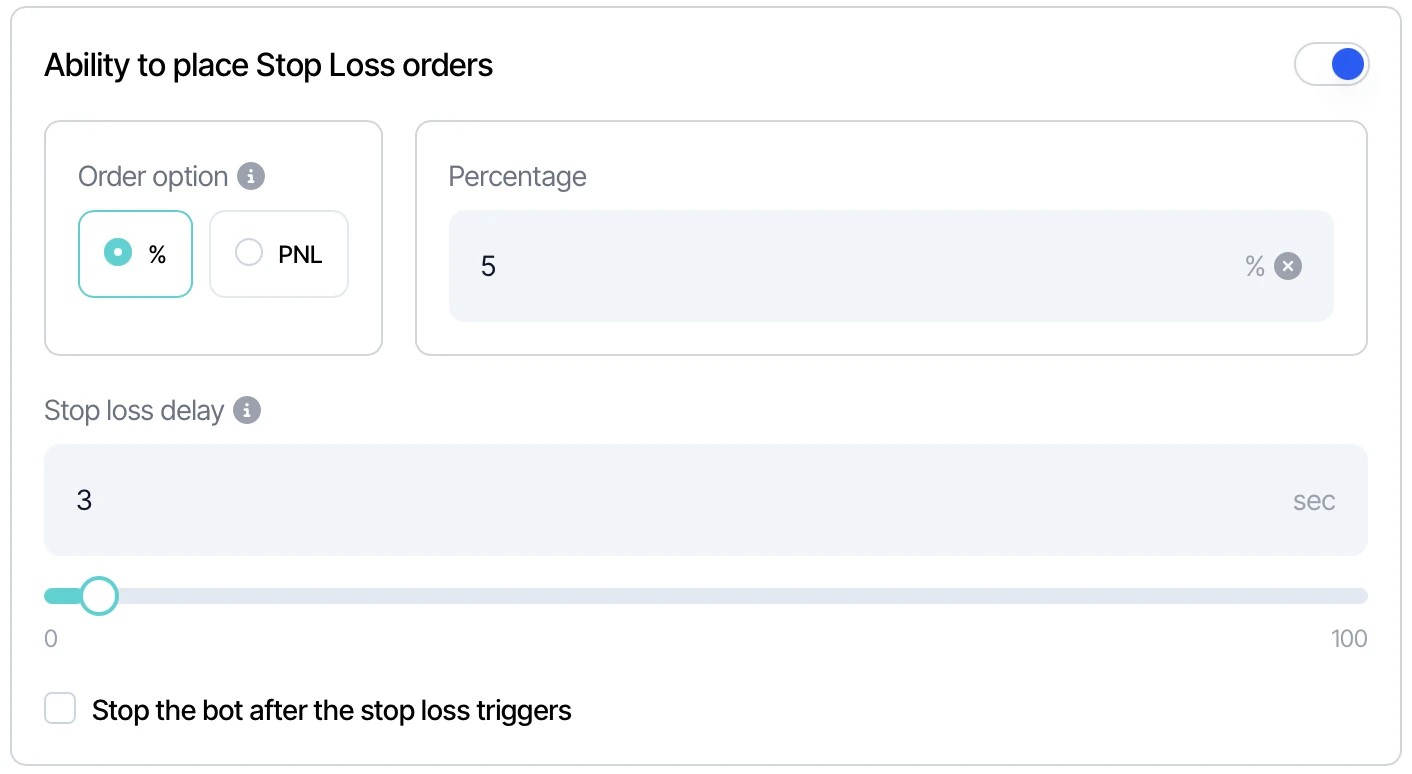
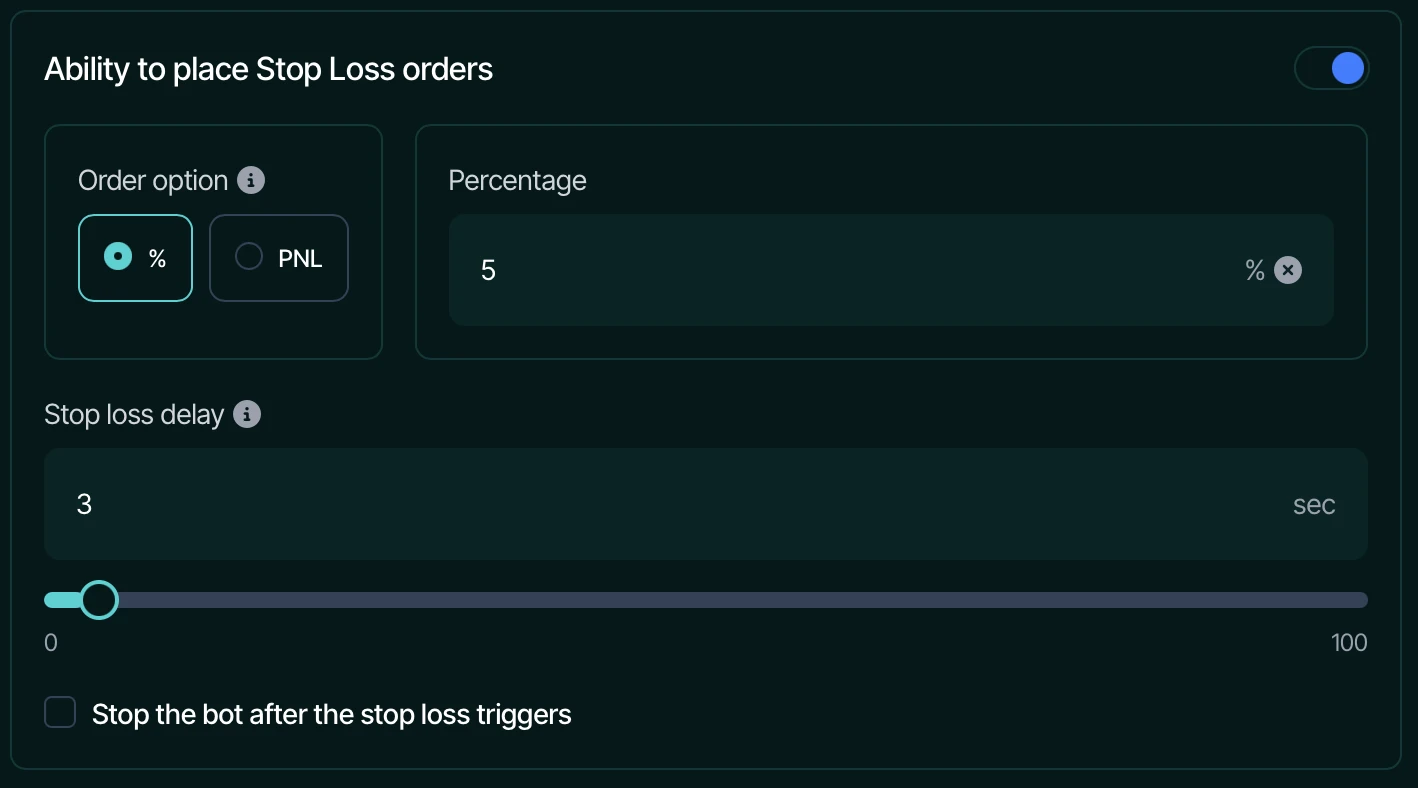
“Stop loss delay”: from 0 to 100 seconds. When the price crosses the level, the bot starts a timer and checks the price again when it ends. If the price is still beyond the level, the deal closes at market. If it has come back, nothing happens. This way a short price spike does not close the deal. With a delay of 0, the stop loss fires on the first price beyond the level.
When the stop loss fires, the bot removes its orders and sells (buys back for Short) the whole position at market. There is no exchange stop order in the order book; the bot itself watches the level.
The “Stop the bot after the stop loss triggers” checkbox makes a deal closed by stop loss the last one: the pair stops and does not open the next deal, even if the bot repeats deals. Deals closed by take profit, by signal or manually do not stop the bot. If the bot has several pairs, only the pair where the stop loss fired stops; the others keep trading. To start the pair again, use the “Enable bot” button.
Preview
Section titled “Preview”The right panel of the form shows a summary of the settings and calculates the order ladder for each selected pair.
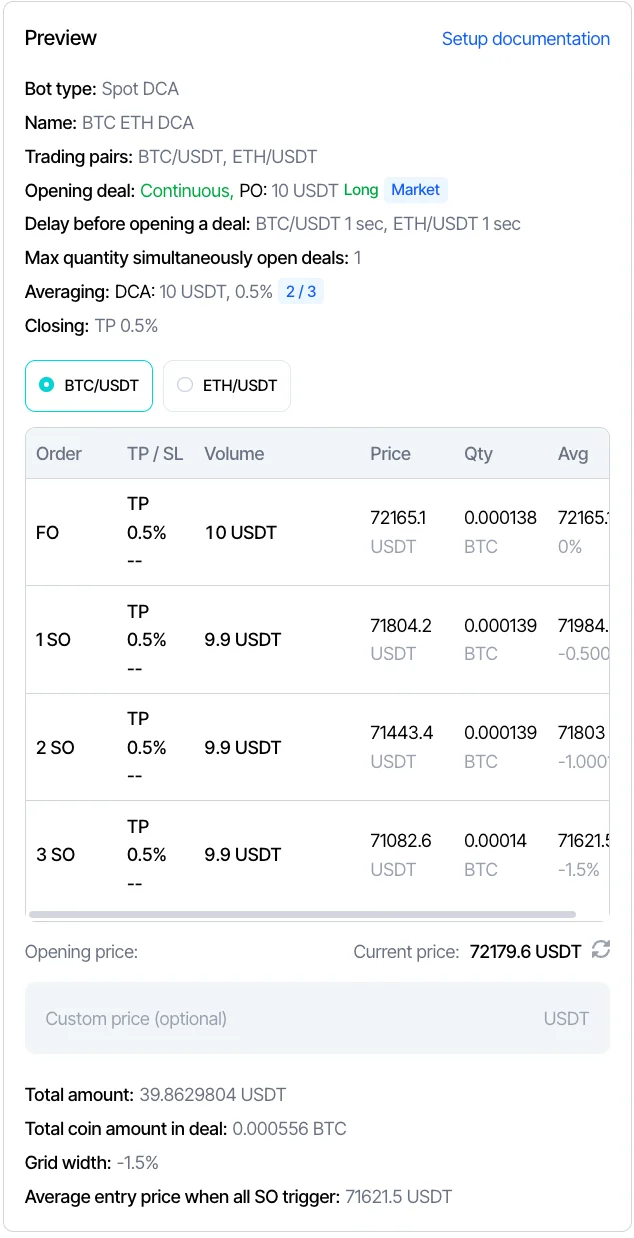
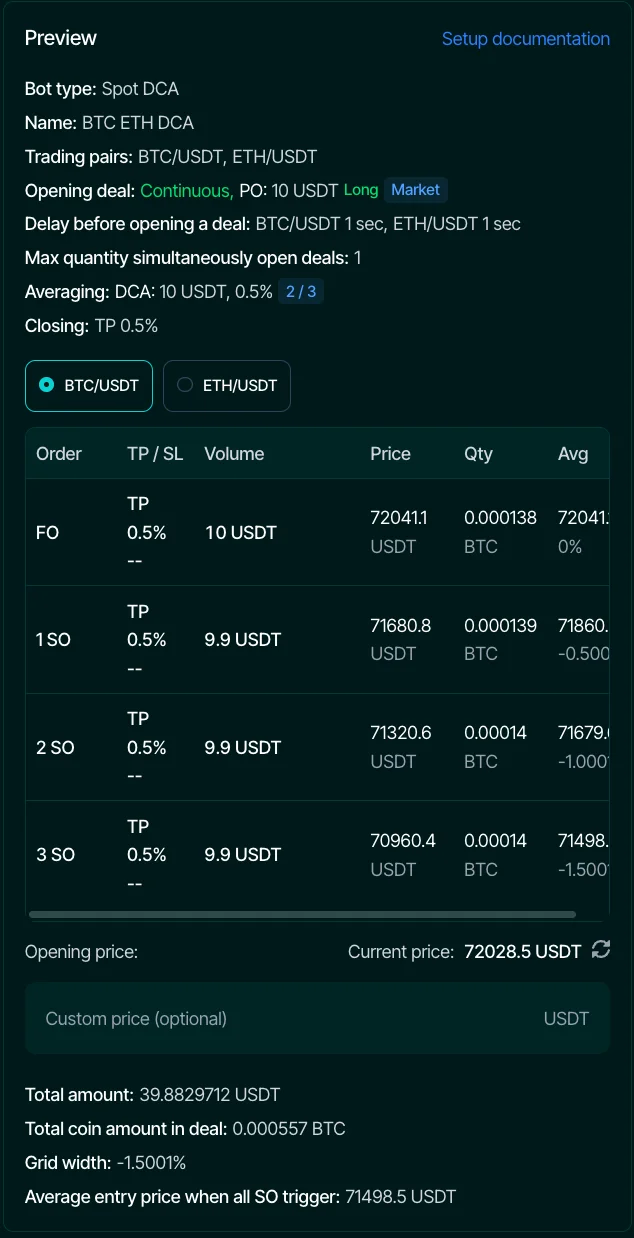
- The order table: the first order (FO) and every safety order (SO), plus the take profit and stop loss levels. For each order you see the volume in USDT, the price, the coin quantity and the average entry price after it fills.
- “Opening price”: the current pair price by default. Enter your own to see the grid from another level.
- “Total amount”: how much USDT goes into the deal if the whole grid fills.
- “Total coins in the deal”, “Grid width” and “Average entry when all SOs fill”.
These numbers make it easy to check that the balance covers all pairs of the bot before you enable it.
Coin reserve for fees
Section titled “Coin reserve for fees”The exchange charges the buy fee in the coin you bought, and lets you sell only in whole lot steps. So that a deal sells exactly what it bought and the take profit does not go negative because of a leftover, the bot keeps a small reserve of the pair’s coin to cover the fees of its buys.
Before each buy (first order, SO, webhook buy, buyback for Short), the bot checks whether the reserve covers its fee. If not, it first takes free coins of the pair on the account that are not held by deals of your other bots, and buys the rest in the same order, usually one lot step. That is why the quantity in an order is sometimes slightly larger than the volume suggests, and Long needs slightly more quote currency than the sum of the orders. Bot and account limits count the order without this extra buy.
The reserve carries over from deal to deal, and one extra lot step usually covers several buys. If the exchange charges the fee in BNB or in the quote currency, the reserve is not used and stays for the next deals.
The preview shows how much of the coin the first deal will buy for the reserve and what it costs. The deal card shows what the buy fees were paid in.
While a pair has a deal, the reserve stays with it, even if the bot is stopped. A stopped bot with no deal releases the reserve: the coins stay on the account, and the next start begins without a reserve.
Deal result
Section titled “Deal result”The deal history shows how each deal ended:
- “closed”: the coins were sold by take profit, stop loss, signal, PNL, time, or force close;
- “cancelled”: nothing was sold, because the deal was cancelled with the “Cancel deal” button, the first order did not fill, or there was nothing to sell.
For each order of a deal you can see its status, filled volume, average price, and who removed it: the bot or the exchange.
Editing a running bot
Section titled “Editing a running bot”You can change the settings of a running bot:
- a pair with no deal right now works with the new settings immediately;
- a pair with a deal finishes it with the old settings and switches to the new ones from the next deal. The edit form of such a bot warns about this with a banner at the top;
- a newly added pair starts on its own;
- a pair with an open deal cannot be removed until the deal closes;
- the exchange and account of a running bot cannot be changed.
Starting and stopping
Section titled “Starting and stopping”After saving, the bot appears in the bot list disabled.
- “Enable bot”: the toggle in the “Activation” column of the bot list, or the button on the bot page. With the “Continuous” entry condition, the first deal opens within a few seconds.
- “One deal”: a button on the bot page, visible while the bot has no open deal. The bot runs one deal on each pair and stops.
- “Disable bot”: the same toggle or button. The bot stops opening new deals and placing new safety orders, and finishes the current deal: placed orders, take profit and stop loss keep working.
- To close a deal right away, use the “Force close deal” and “Cancel deal” buttons on the bot page or in active deals. If you do not want the next deal, disable the bot first.