
Bot management
In the cabinet: the “Spot bots” section, the “My Bots” page, the eye
button next to the bot. Page address:
cryptorg.net/en/bots/spotView/<bot ID>.
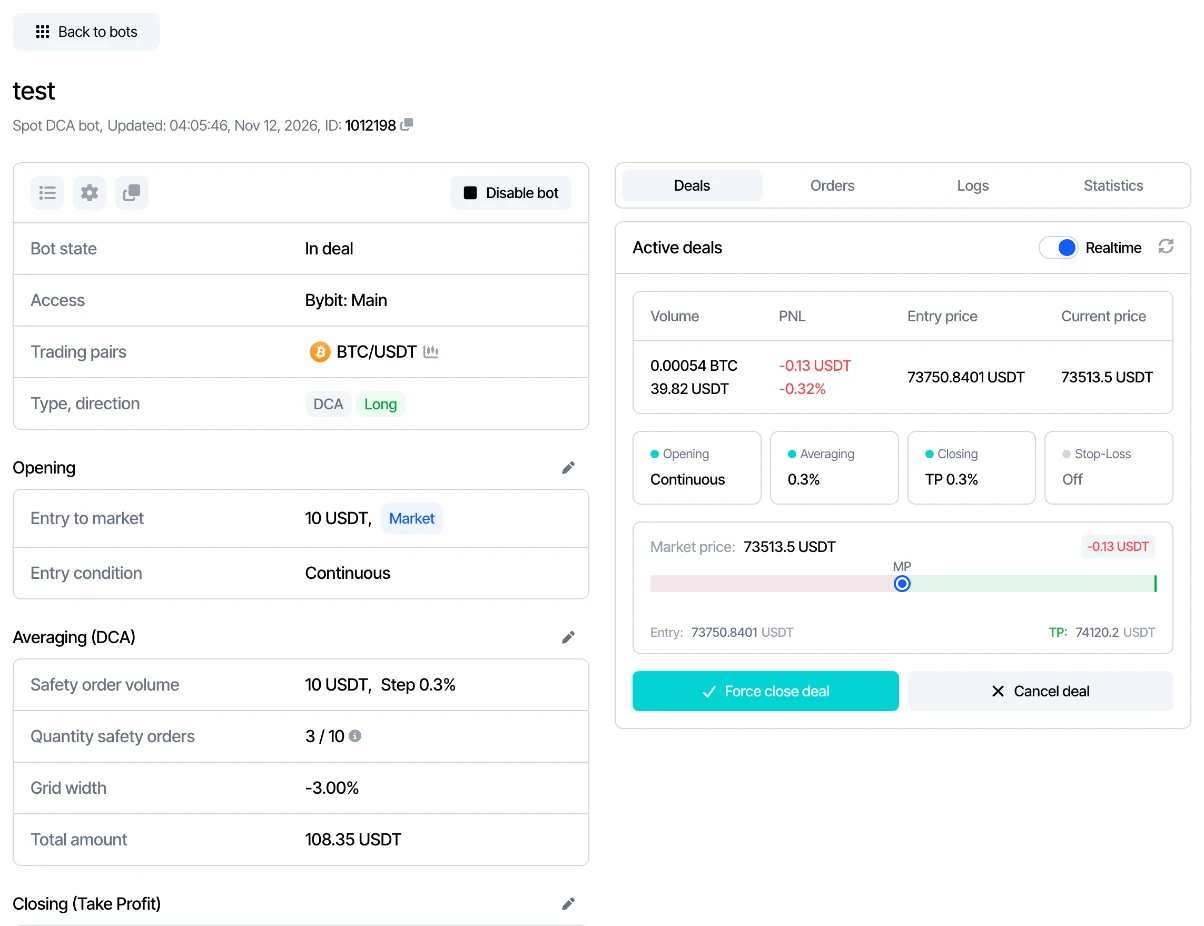
The left side of the page shows the bot card with its settings. On the right there are four tabs: “Deals”, “Orders”, “Logs” and “Statistics”.
Bot card
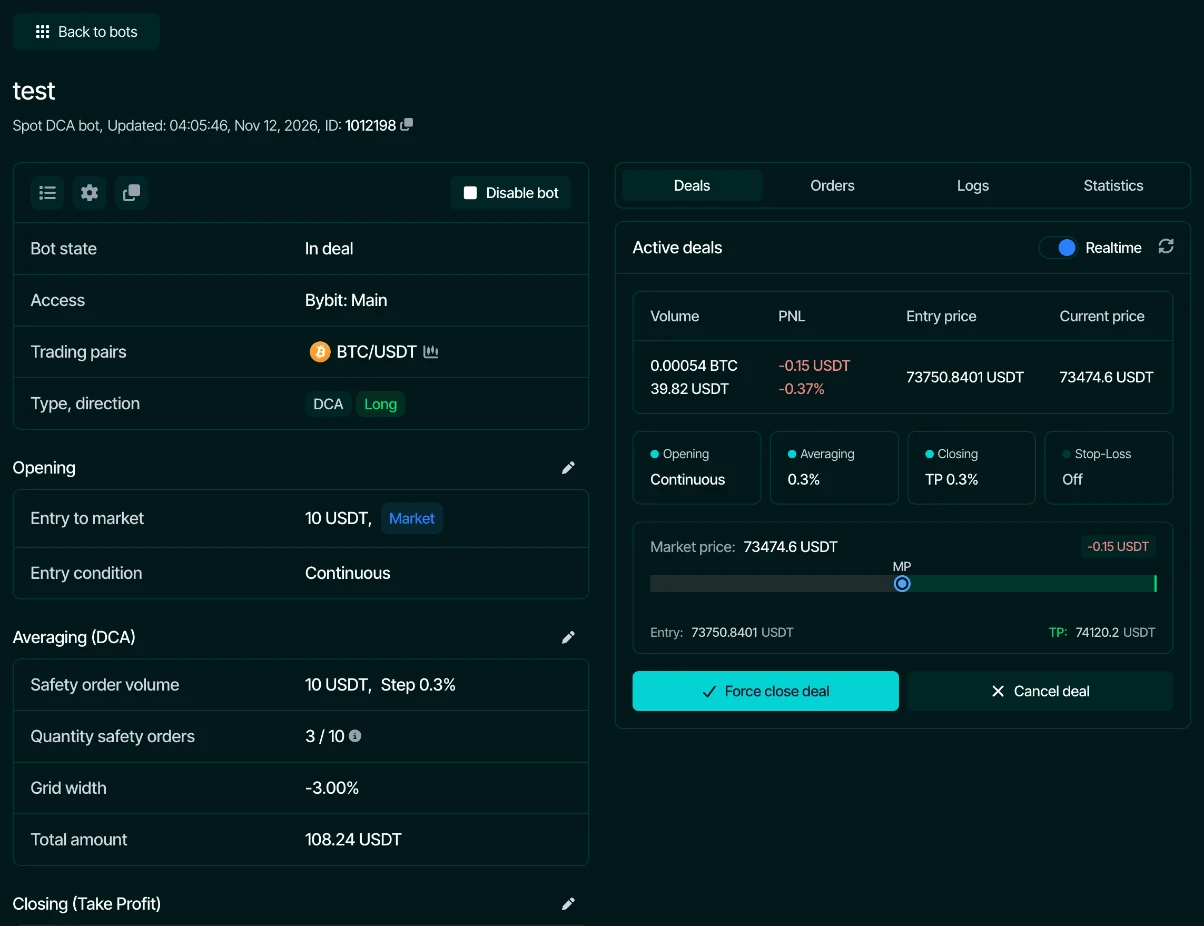
Section titled “Bot card”The header shows the bot name, its type (“Spot DCA bot”), the time of the last change and the ID. The icon next to the ID copies it.
Above the header there is a “To bot list” button. Below the header, on the left, are three icons: the list icon opens the bot list, the gear opens the bot settings, and the next icon clones the bot. On the right is the “Enable bot” or “Disable bot” button. A disabled bot does not open new deals or place new safety orders, and finishes the current deal. While the bot has no open deal, there is also a “One deal” button next to it: the bot runs one deal on each pair and stops. See Starting and stopping.
Then come the rows:
- “Bot state”, for example “In deal”;
- “Access”: the exchange account the bot works on;
- “Trading pairs”;
- “Type, direction”: DCA, Long or Short.
The “Opening”, “Averaging (DCA)” and “Closing (Take Profit)” blocks repeat the main bot settings. The pencil to the right of a block title opens that block in the settings form. “Averaging” has two rows that are not in the form. “Grid width” shows how far, in percent of the entry price, the last safety order is. “Total amount” shows what the first order and all safety orders cost together. It changes slightly with the price, because the bot rounds each order’s volume to the lot step.
The “Statistics” block shows how many cycles are completed, how many deals were opened and closed, and the bot’s realized PnL. The bot creation date is at the bottom.
Deals tab
Section titled “Deals tab”This tab shows the bot’s current deal. The “Realtime” toggle updates the data automatically; the button next to it refreshes it manually.
The table shows the deal volume in coins and in USDT, PNL in USDT and in percent, the average entry price and the current price. Below are four tiles with the deal settings: how it opened, the averaging step, the take profit and the stop loss (“Off” if it is turned off).
The scale shows where the market price (MP) is now between the entry price and the take profit (TP). If the stop loss is on, its level (SL) is marked to the left of the entry. The current deal result in USDT is above the scale on the right.
There are two buttons under the scale.
“Force close deal”. The bot removes its orders and sells the deal’s coins at market (Short buys them back). The deal is closed.
“Cancel deal”. The bot removes its orders and sells nothing. The coins stay on the account and no longer count as the bot’s deal. You can sell them manually in the terminal.
Orders tab
Section titled “Orders tab”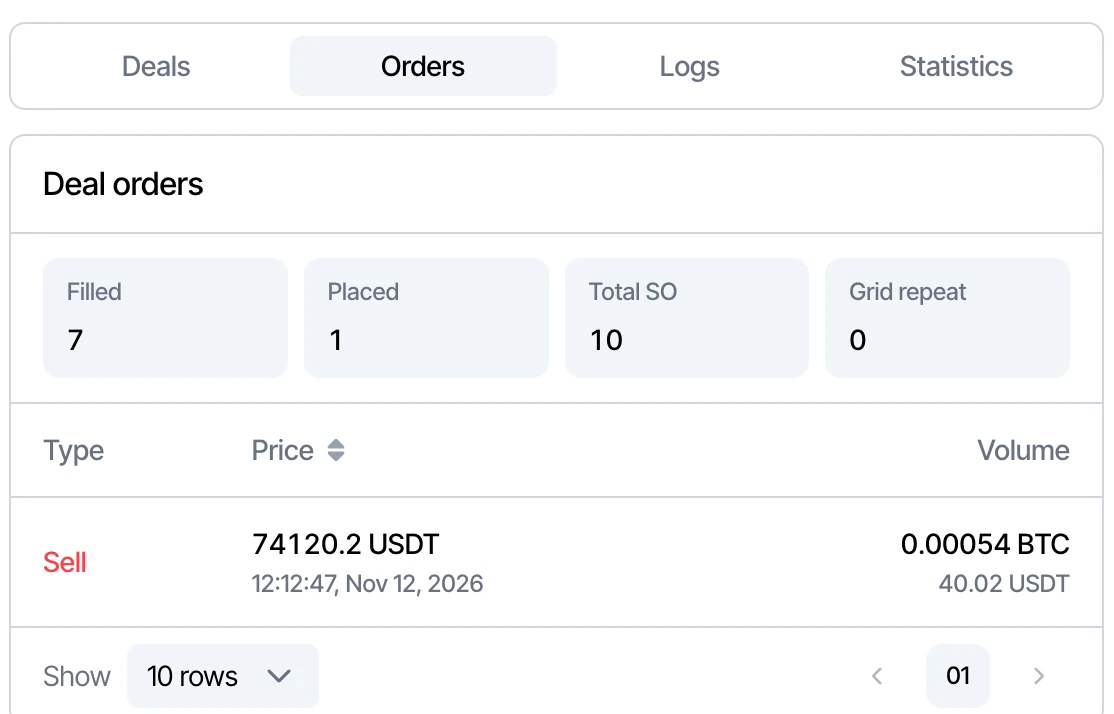
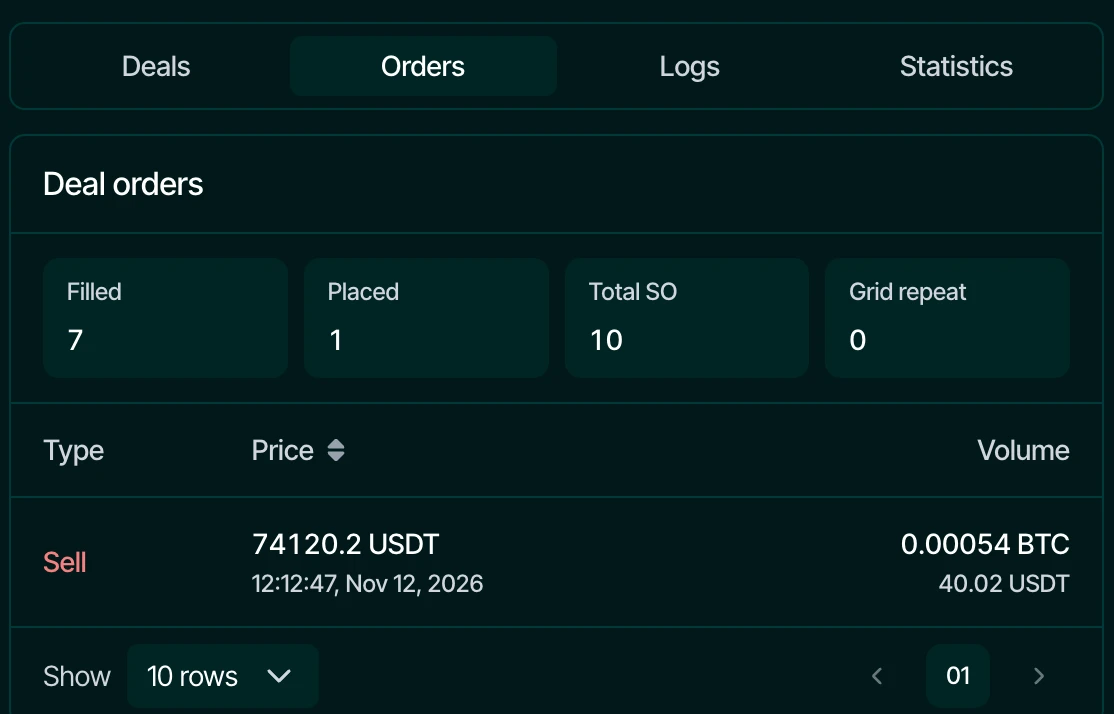
There are four counters at the top:
- “Filled”: how many orders of the deal have filled;
- “Placed”: how many orders are on the exchange now;
- “Total SO”: how many safety orders are in the bot settings;
- “Grid repeat”: how many times the bot has placed the safety order ladder again, if re-gridding is turned on in the settings.
The table lists the orders that are on the exchange now: buy or sell, the price and placement time, and the volume in coins and in USDT.
Logs tab
Section titled “Logs tab”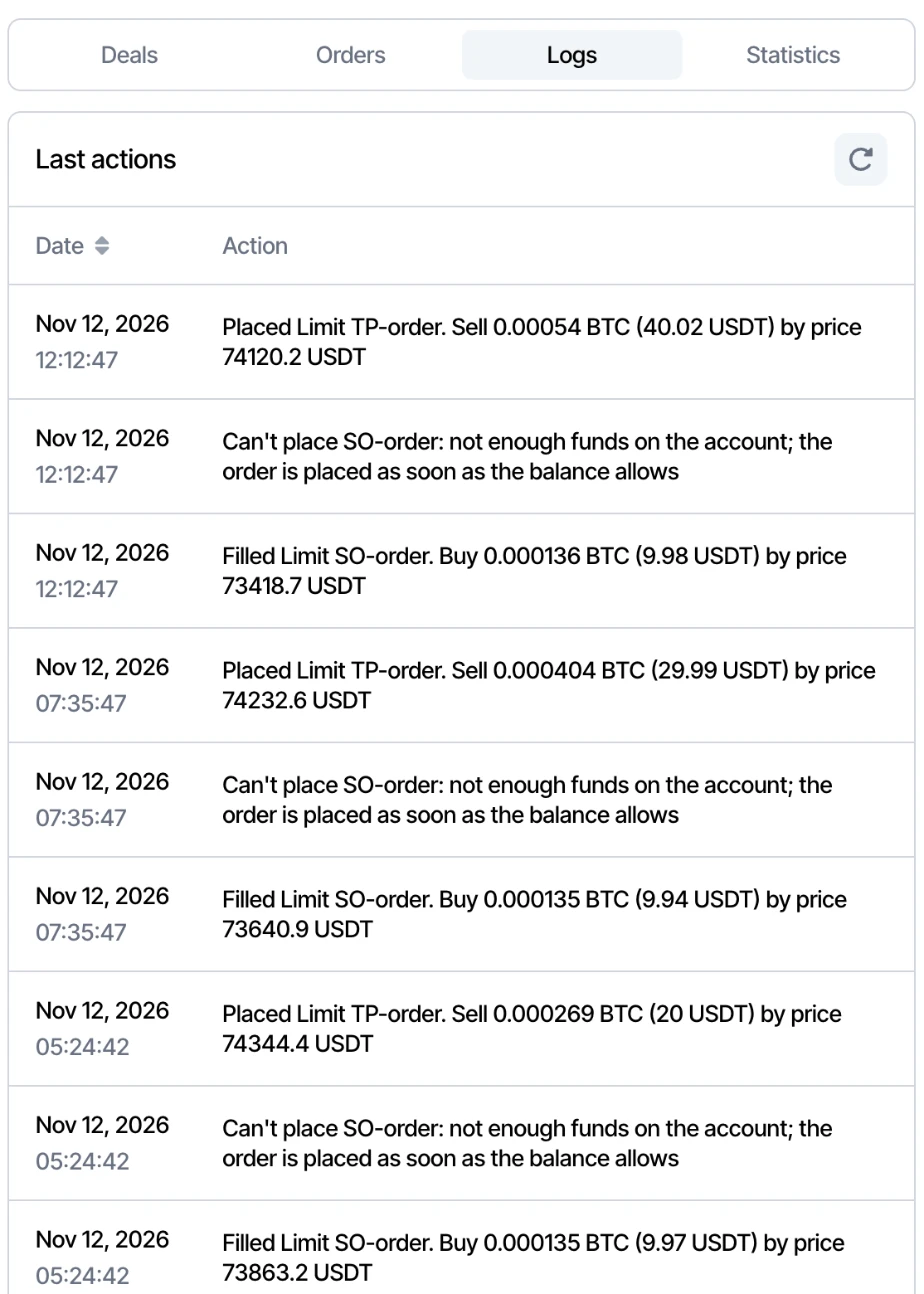
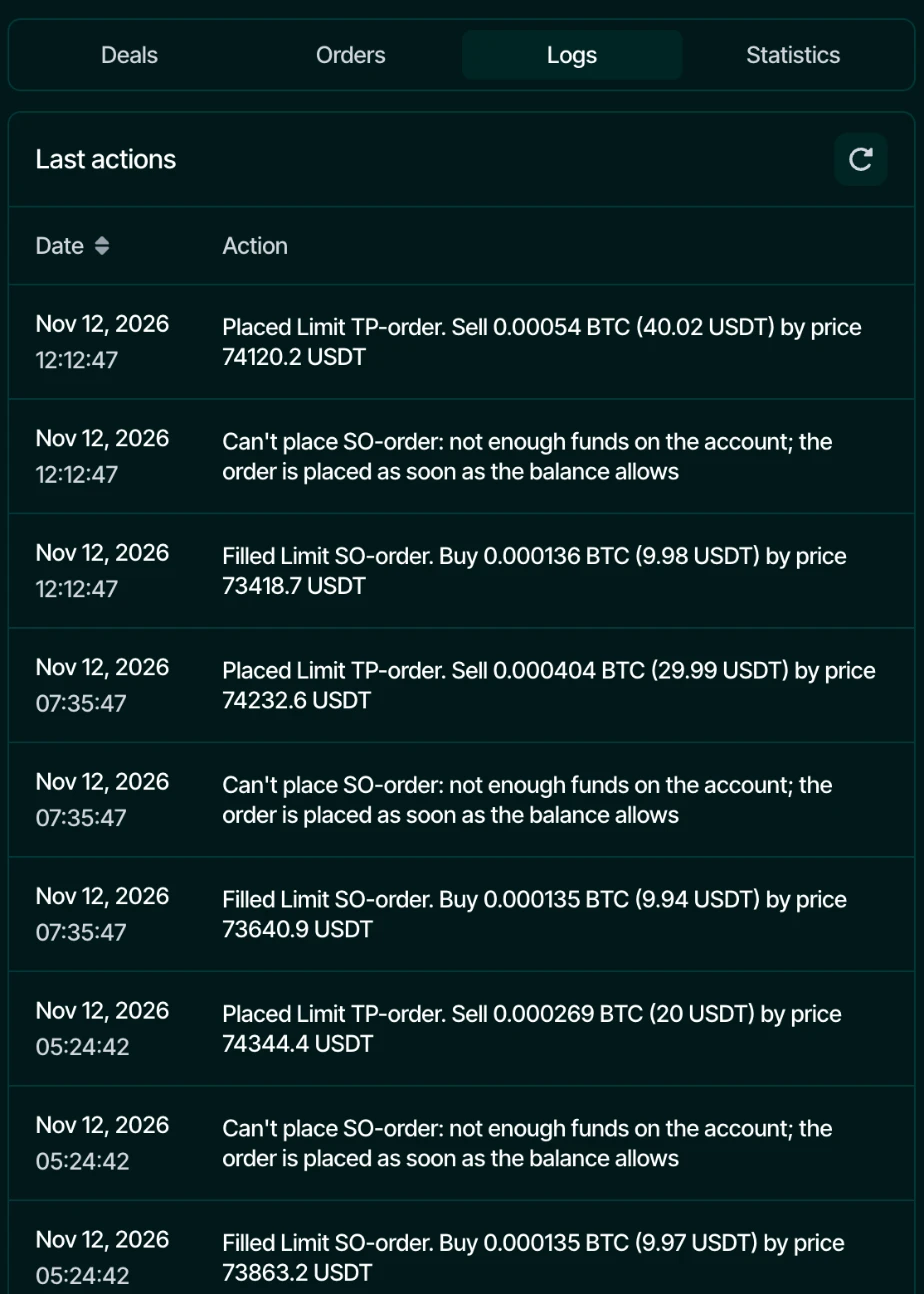
“Last actions” is the bot’s log, newest entries first. It shows which orders the bot placed and which filled (FO is the first order, SO a safety order, TP the take profit), when a deal opened and closed and with what result, and why the bot could not do something, for example because of the open deals limit or a lack of funds. It is the first place to look if the bot does not behave as expected.
For example, the line “Can’t place SO-order: not enough funds on the account; the order is placed as soon as the balance allows” means there was not enough money for a safety order. The bot places it by itself once the account has the required amount. The deal continues meanwhile, and the take profit stays in place.
Statistics tab
Section titled “Statistics tab”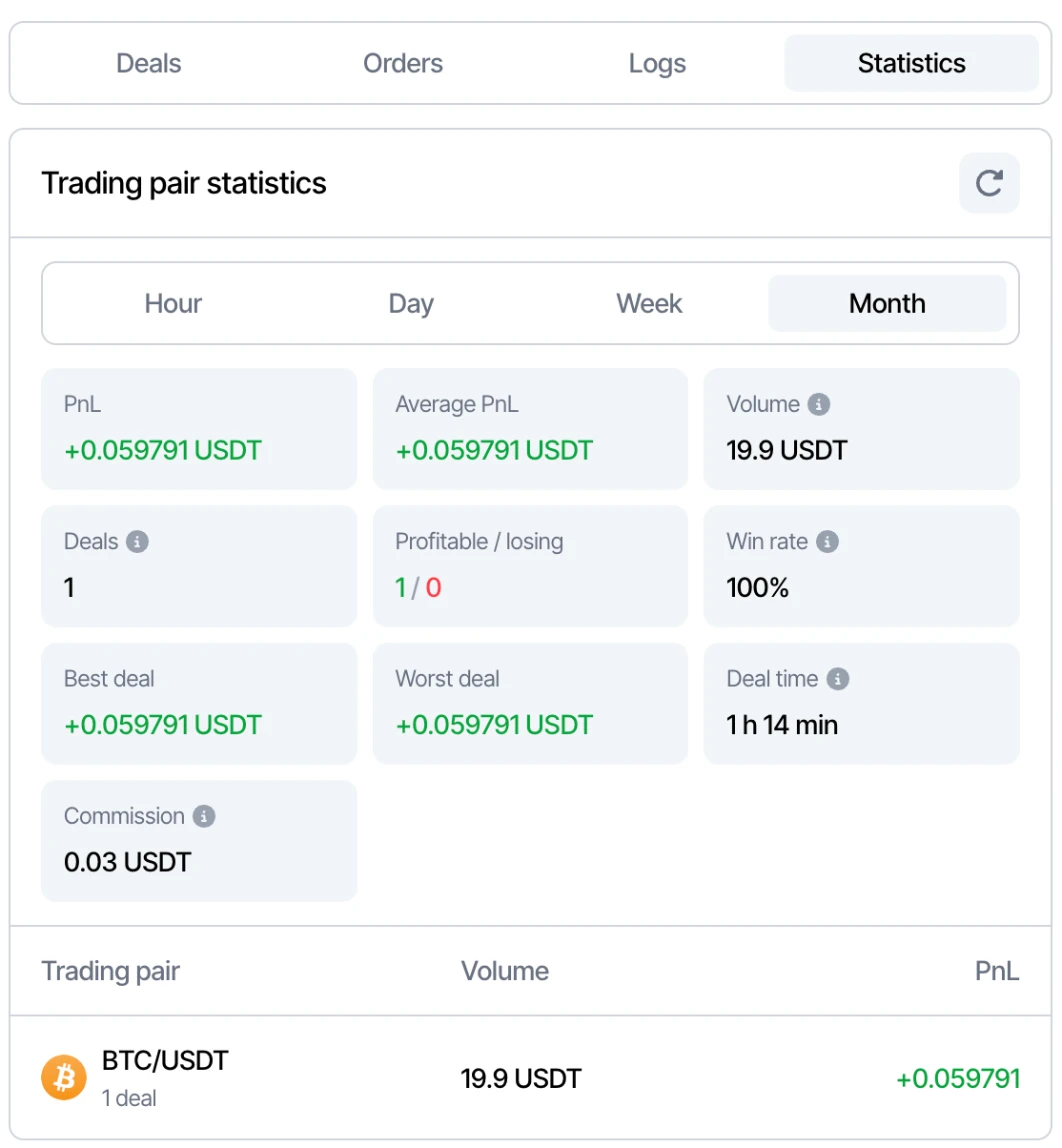
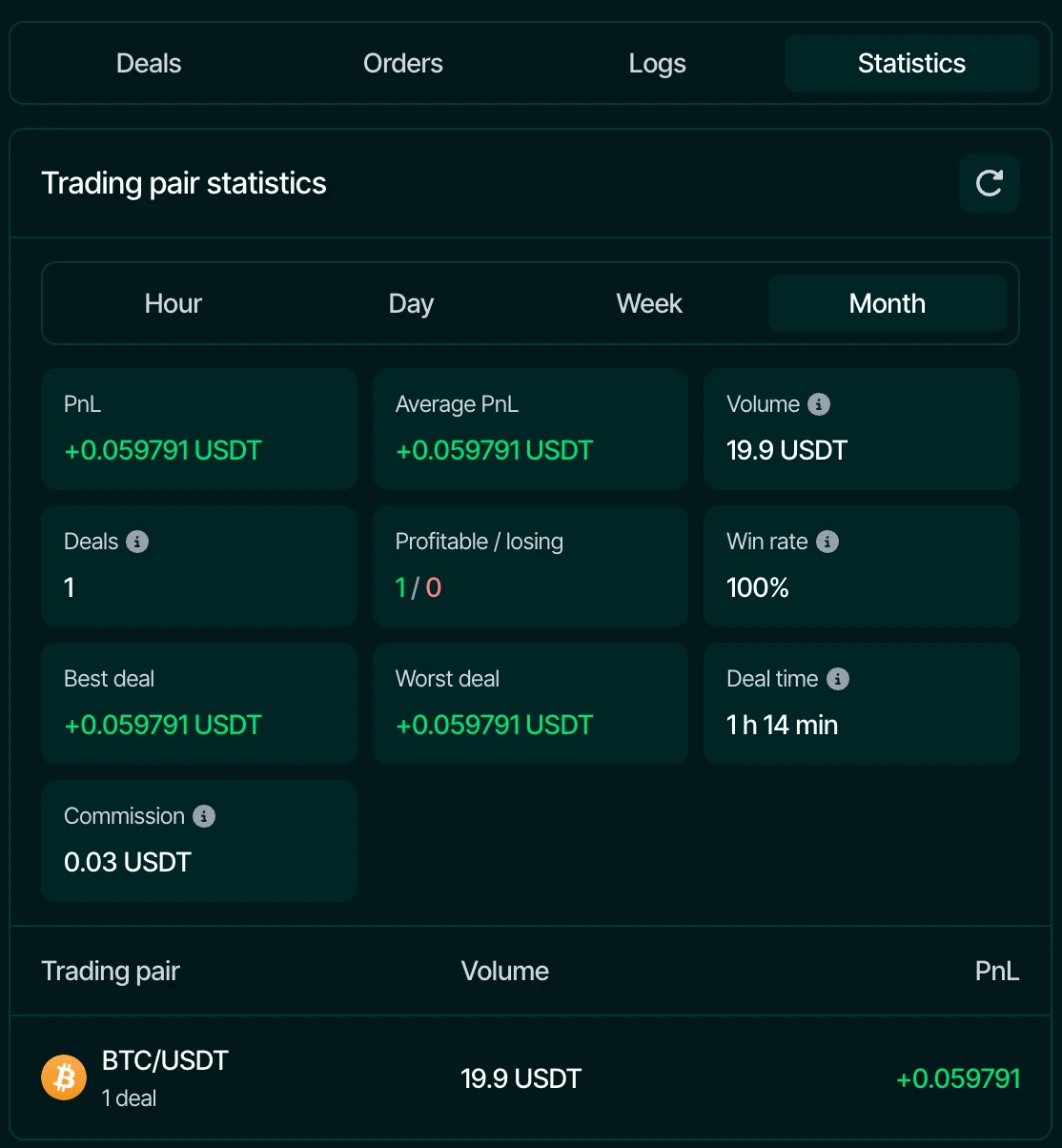
Choose the period at the top: hour, day, week or month. Only deals completed in this period are counted. Cancelled deals are not included.
- “PnL” and “Average PnL”: the result of all deals and of one deal on average.
- “Volume”: first orders and filled safety orders of completed deals.
- “Deals”, “Profitable / losing” and “Win rate”: how many deals were completed and how many of them closed in profit.
- “Best deal” and “Worst deal”.
- “Deal time”: the average time from opening to closing.
- “Commission”: exchange trading fees for completed deals.
Below are the same results for each pair of the bot: number of deals, volume and PnL.
If something goes wrong
Section titled “If something goes wrong”Write to the support Telegram bot @cryptorg_support_bot. To help the operator figure it out quickly, include in your first message your login or account email, the bot ID, the pair and deal ID, the time you noticed the problem, 5–10 lines from the “Logs” tab, and screenshots of the bot card and the deal.